Navigating project results
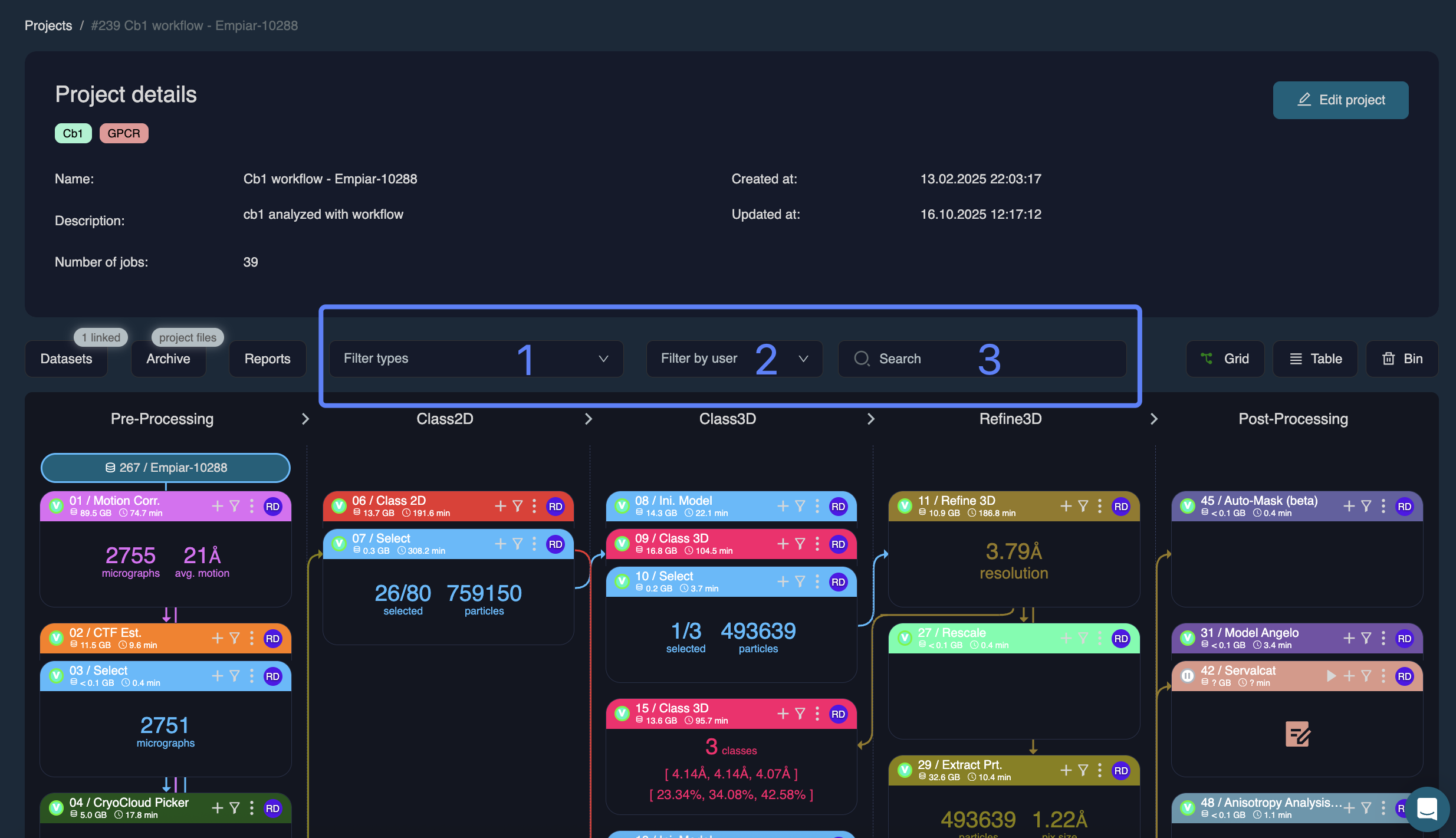
The project grid displays the flow of jobs from pre-processing on the left to post-processing on the right. Parent and child jobs are linked by arrows that indicate the direction of the processing pipeline.
Where a project contains many jobs, the app provides useful tools to filter results, aiding navigation and optimising readability of the project grid.
Find the right job faster with three filter options
By job type - filtering by job type will limit what is displayed in the grid to a job type of your choosing e.g. Refine3D
By user - Each job card has a 'created by' bubble in the top right corner. Where more than one user is collaborating on a project, you can choose to filter jobs by their creator/s
By text - If you know the specific job number/type you're looking for, you can enter it in the seach box. The search also extends to key job outputs displayed on the job cards, such as resolution.
Focus on a specificing processing branch
Where a processing pipeline has several branches, it is often useful to focus on a single processing path. By clicking the small filter icon at the top of a job card, the app will display all upstream and downstream jobs whilst hiding the rest.
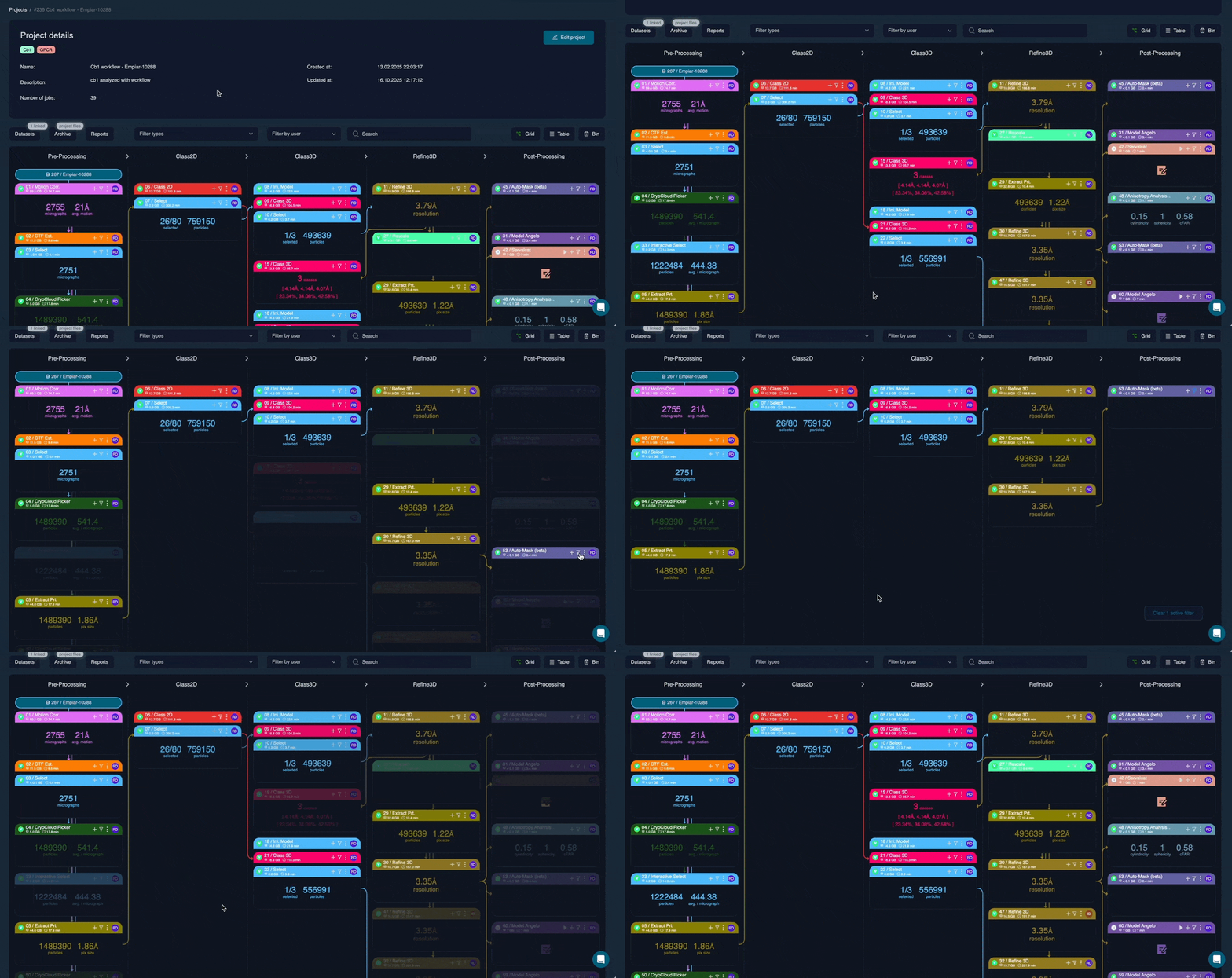
Filters can be removed independently by clicking the cross in the respective search/filter boxes or, for filtering by project branch, clicking on the filter icon a second time. Alternatively, all filters can be removed by clicking on the bottom right of the screen.
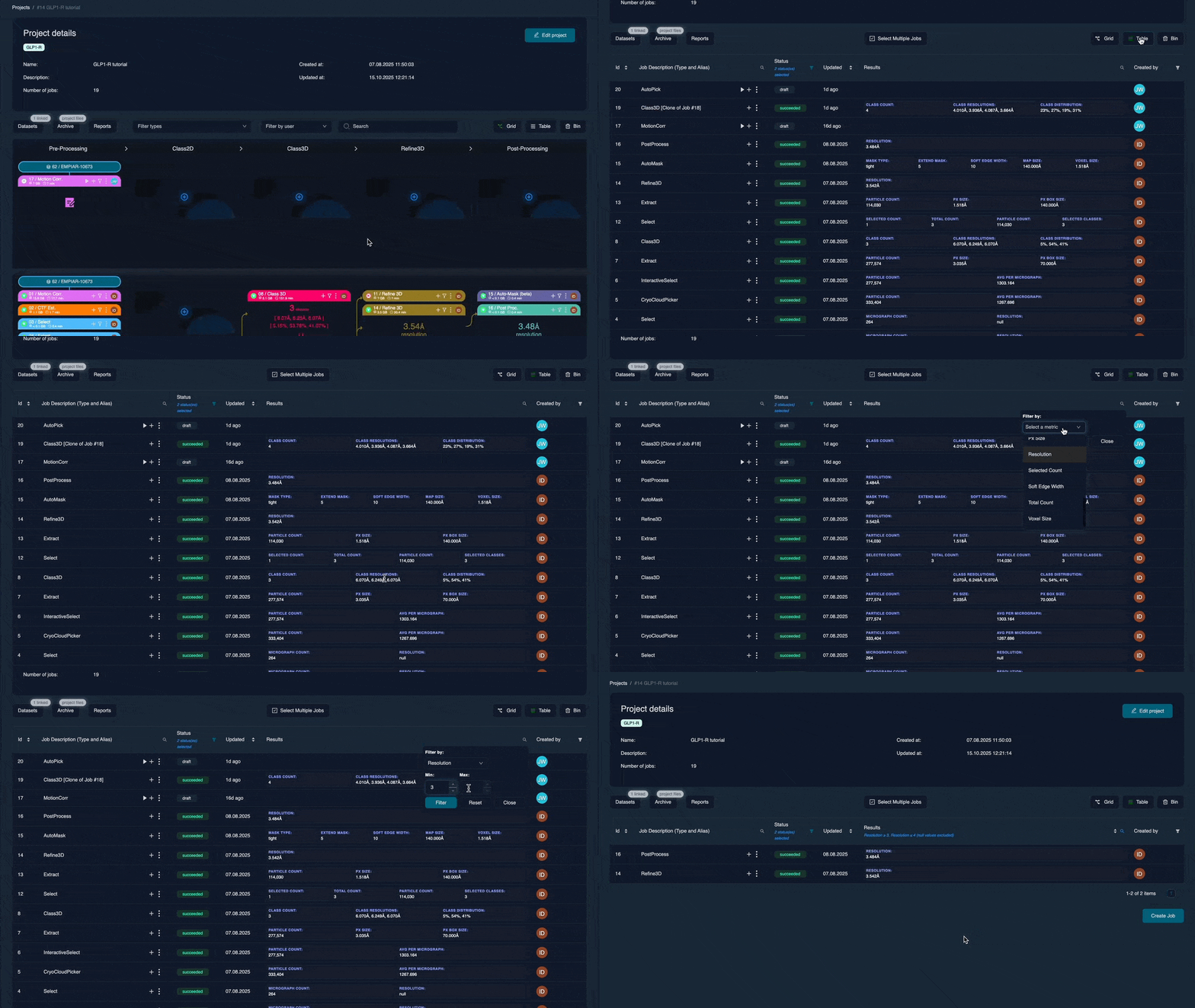
Additional filtering and sorting options are available in the table view
Switching to the Project Table view can make it easier to identify top-performing refinements and compara results across jobs at a glance.
You can set ranges for key job metrics e.g. resolution or particle number, as well as sort by these same metrics. These features allow oversight and navigation of many results quickly and easily!